


















28831-22933-31624
$524.12 On Sale $524.12
Unleash the Ultimate Tesla Driving Experience with the S3XY Dash – The World’s Most Advanced Tesla Heads Up Instrument Cluster!
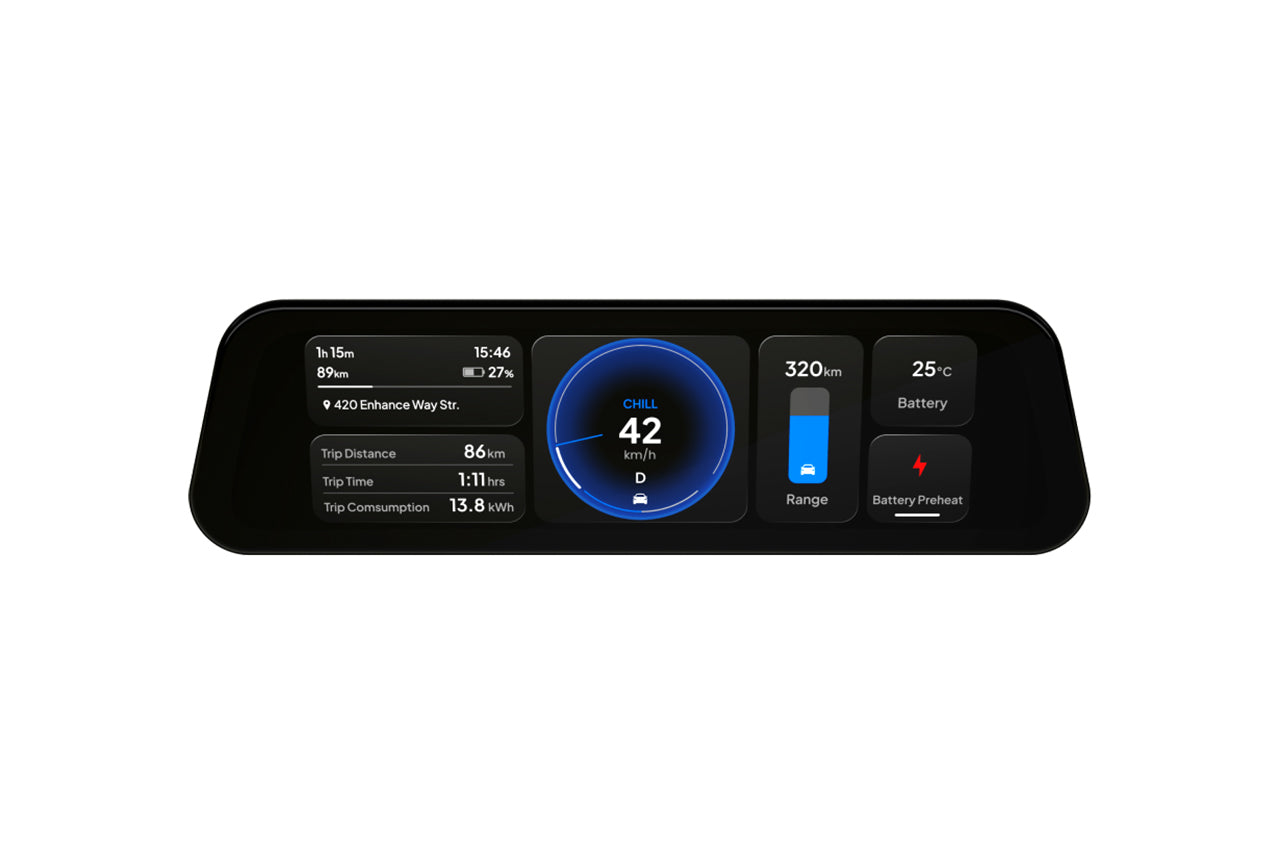
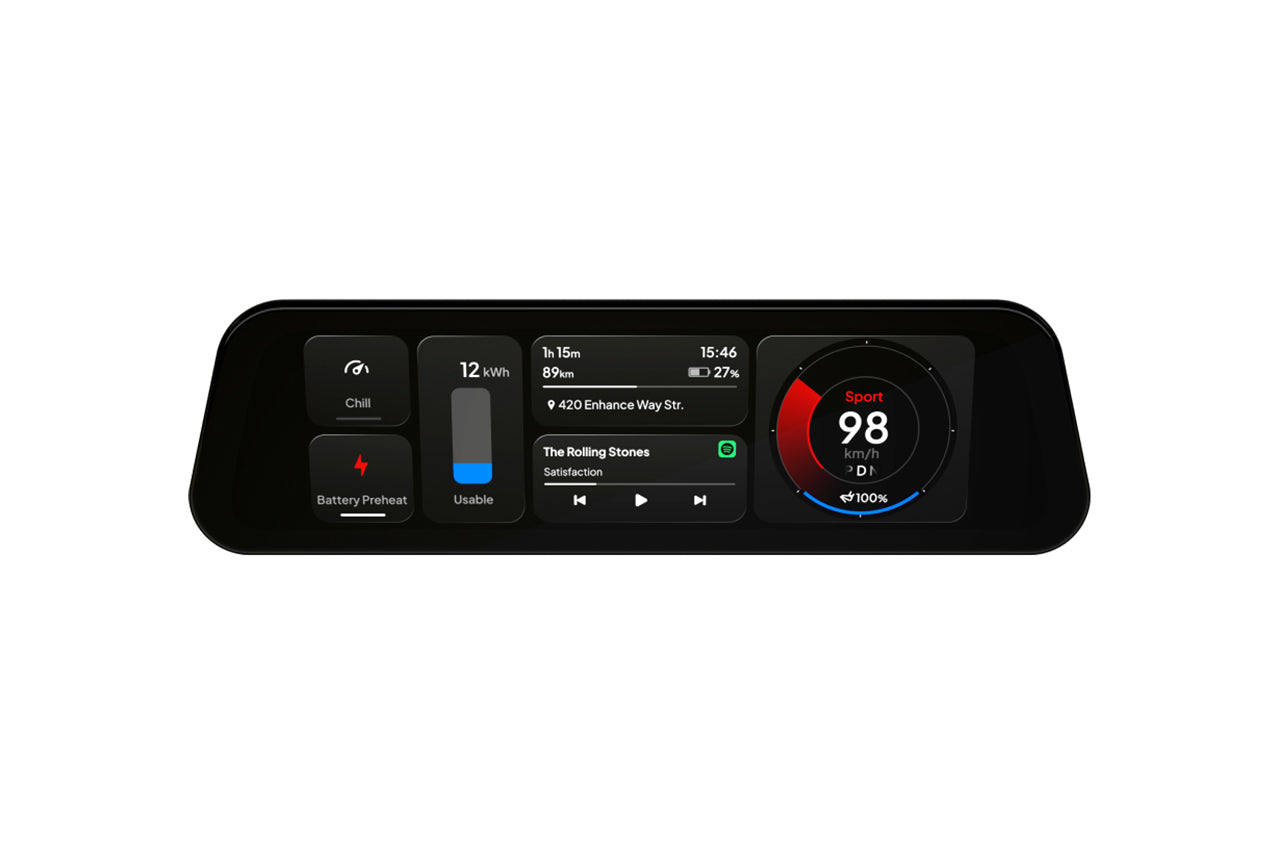
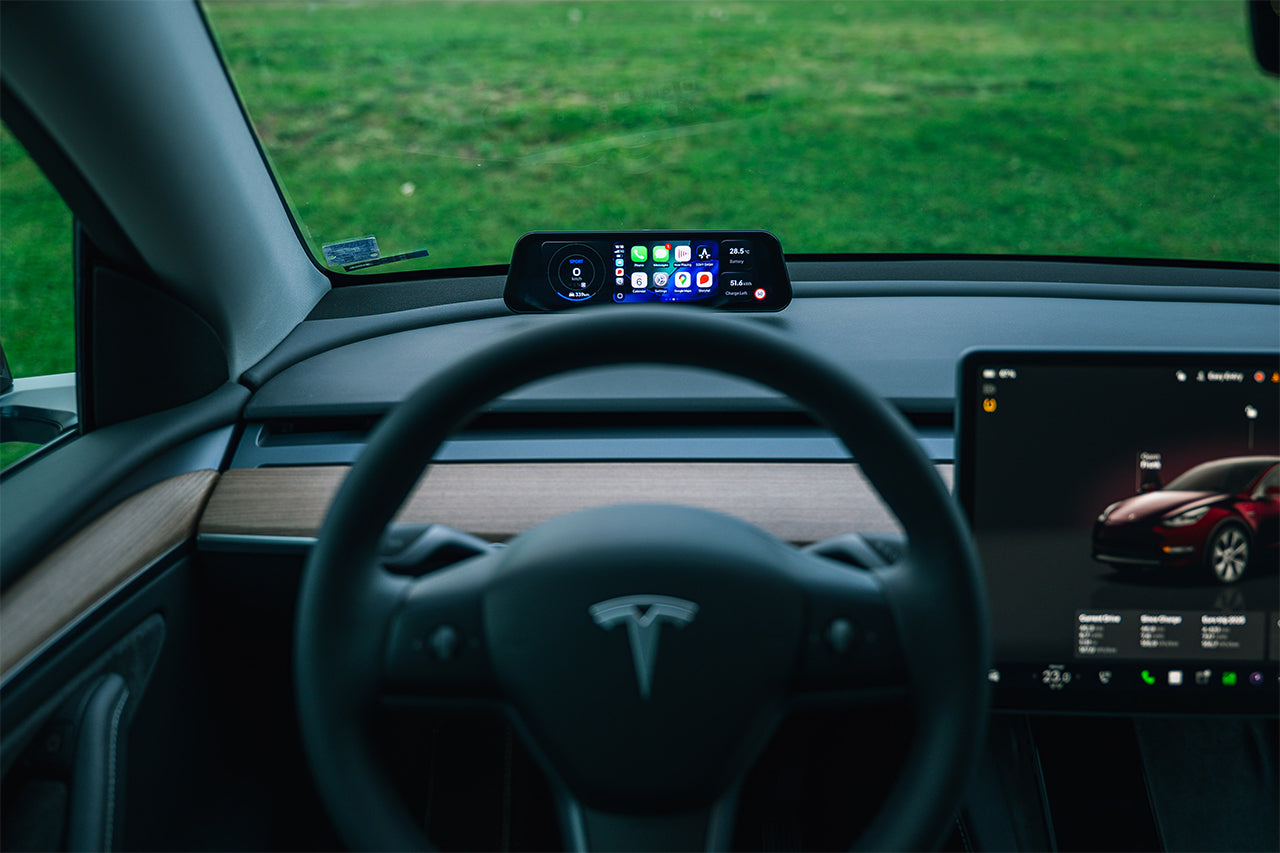
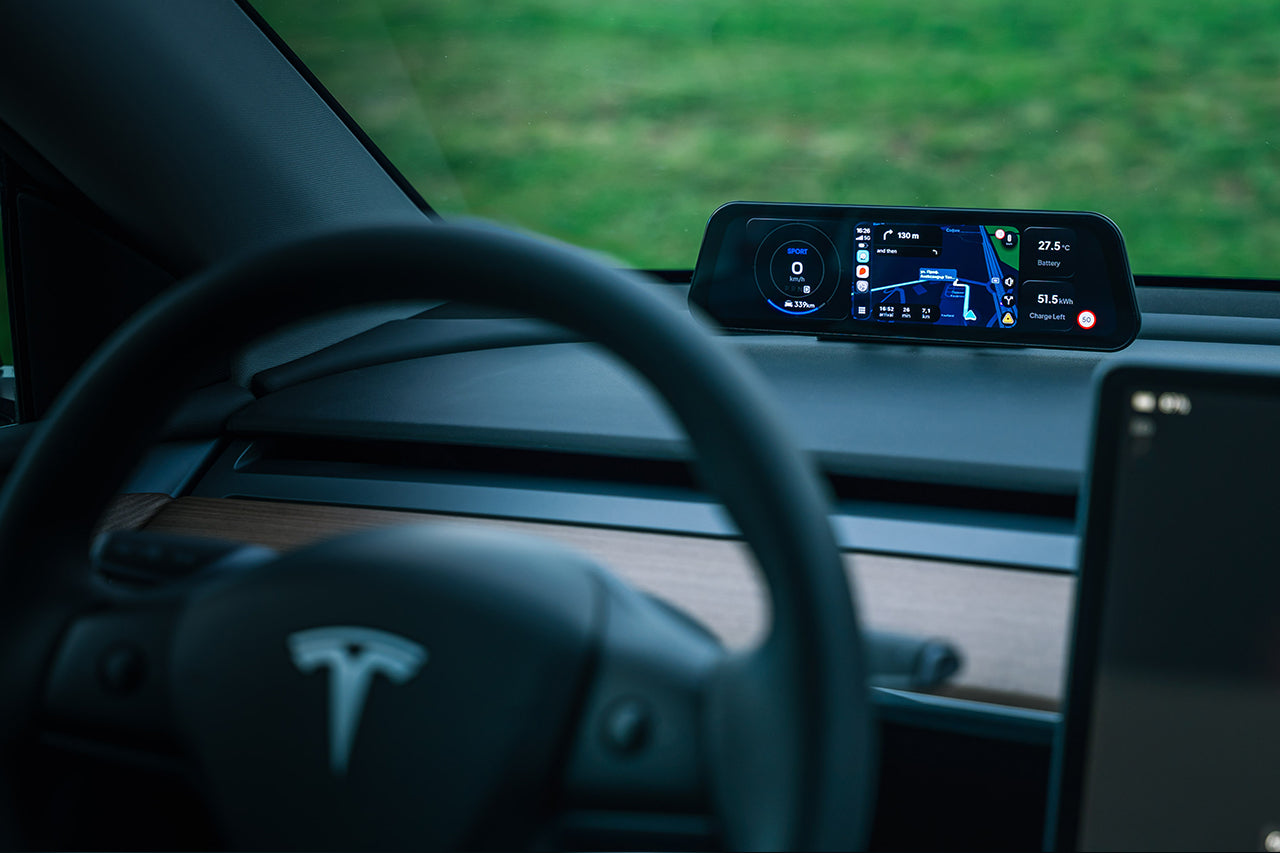
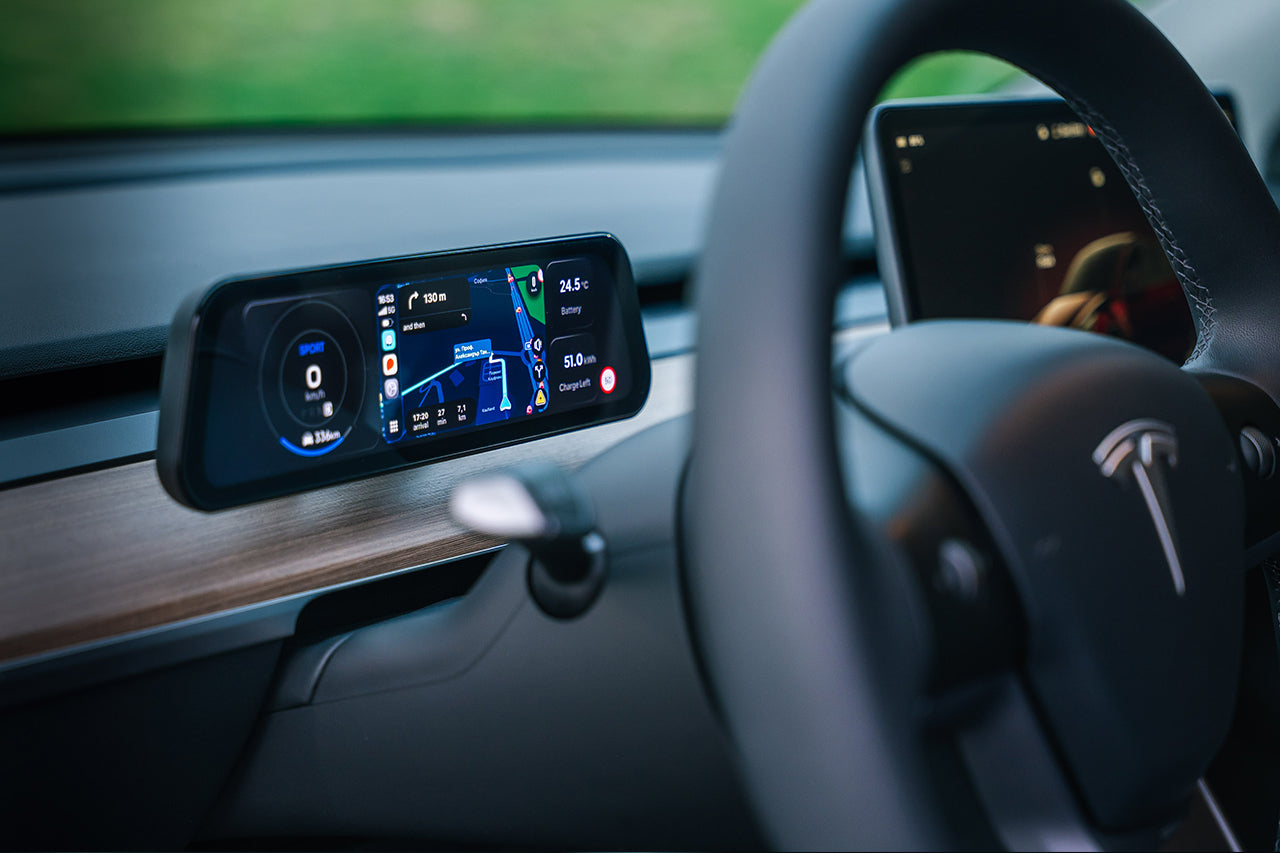
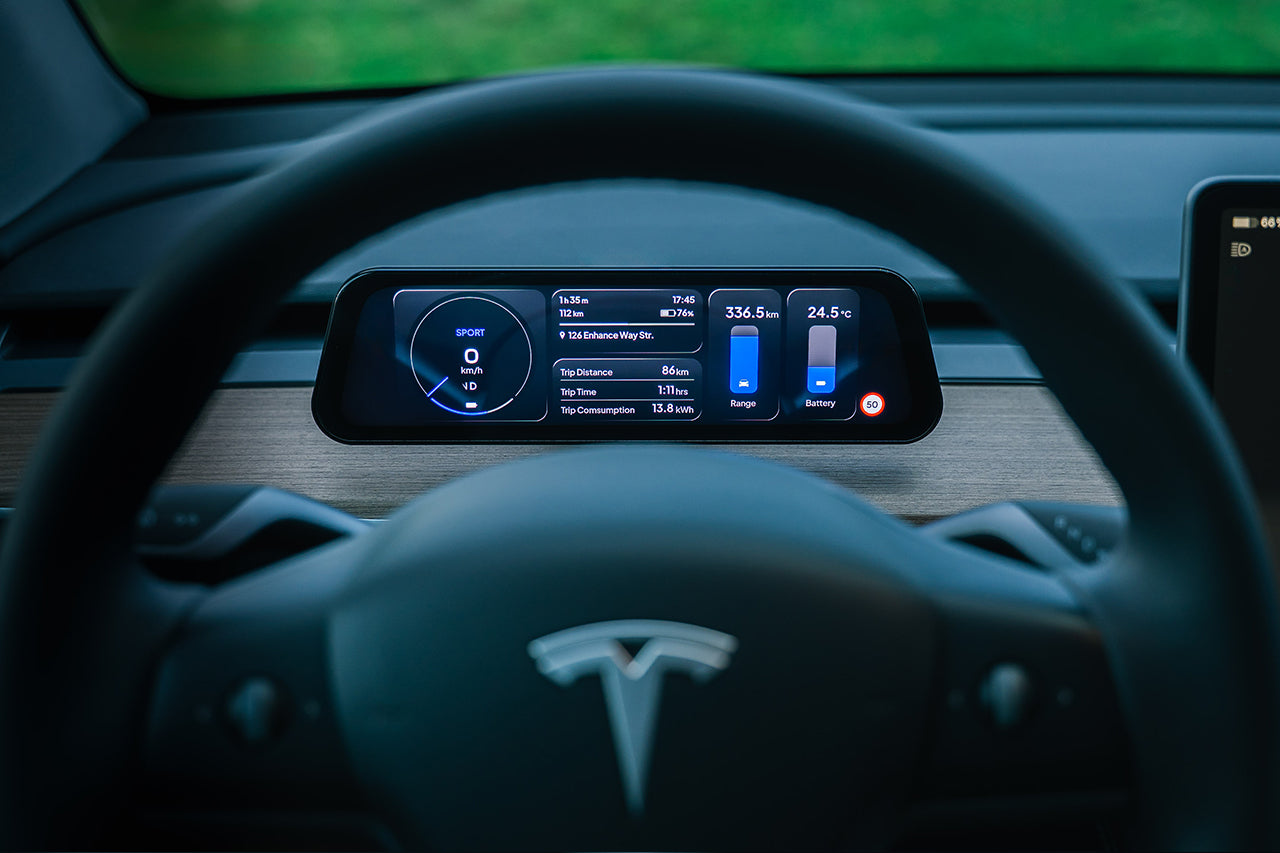
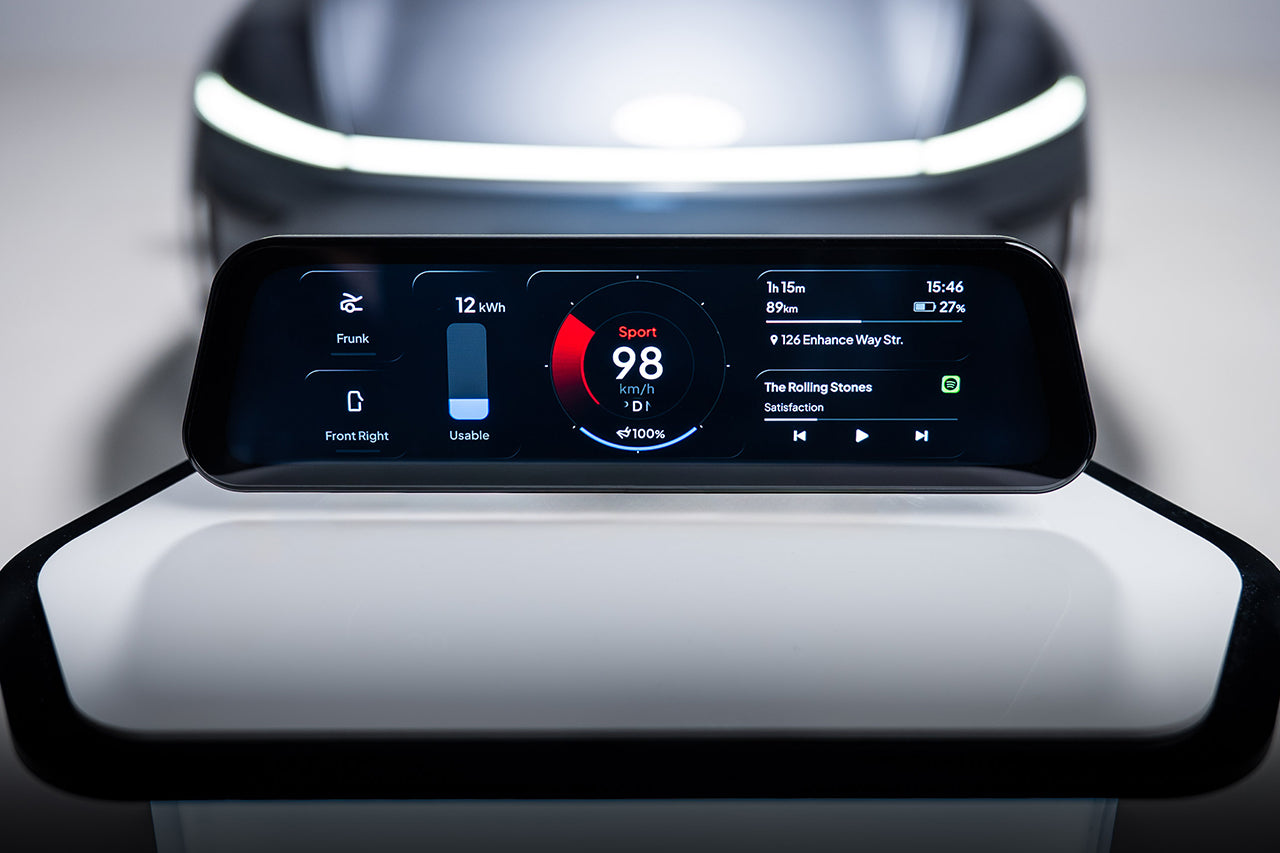
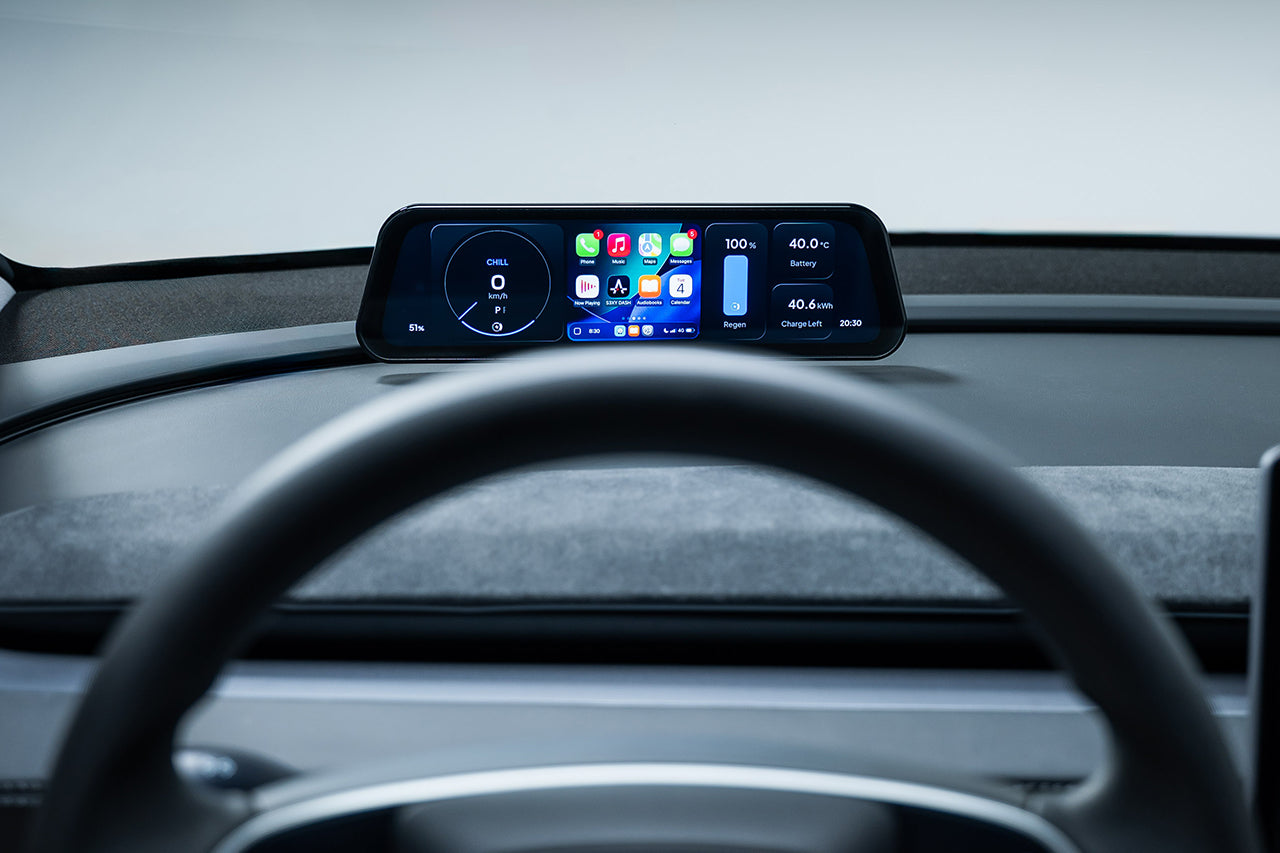
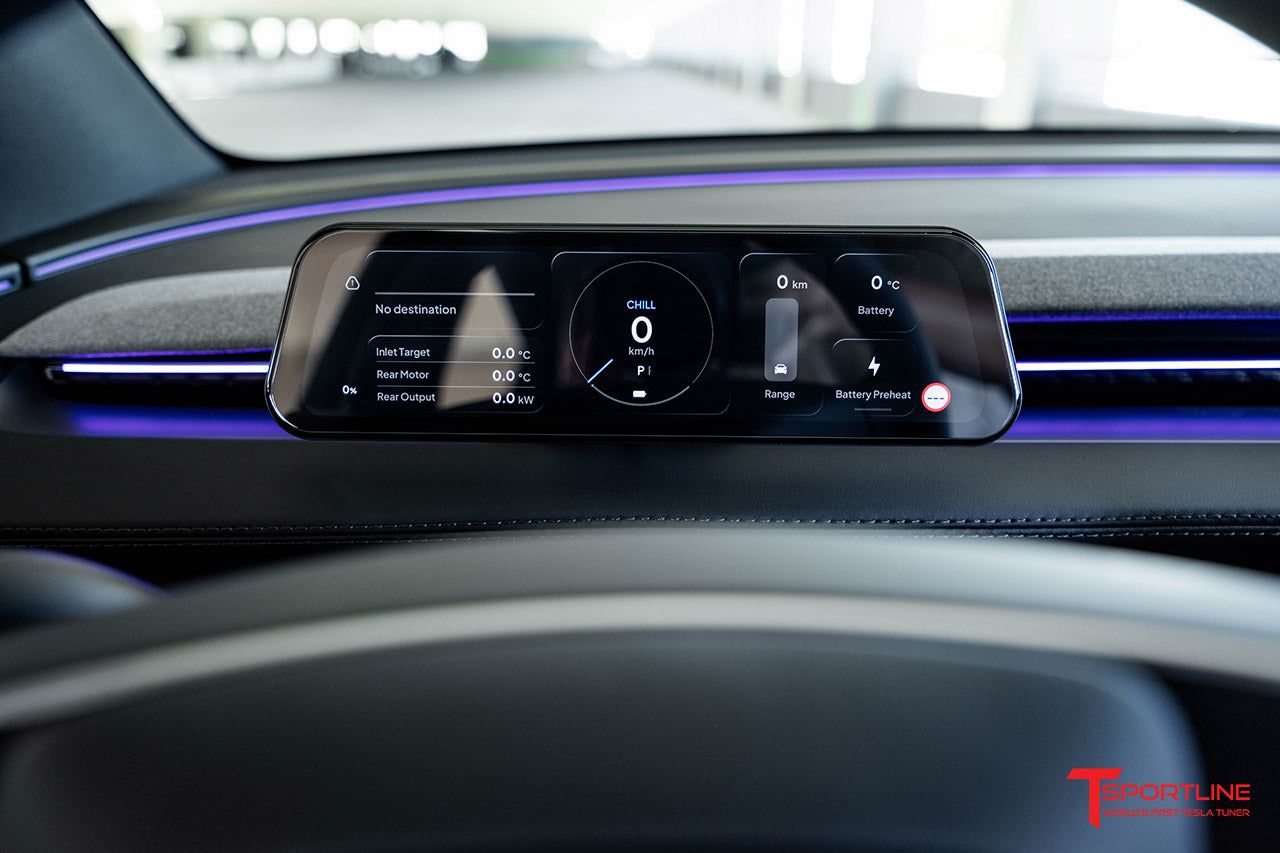
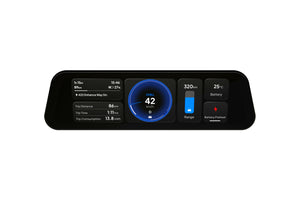
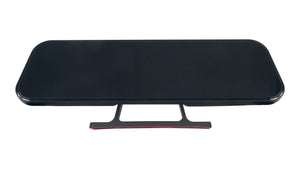
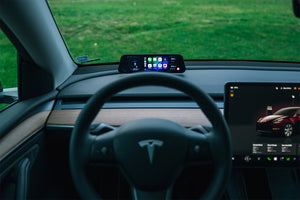
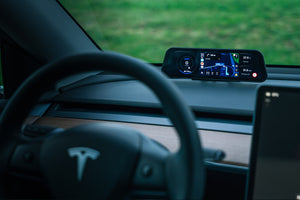
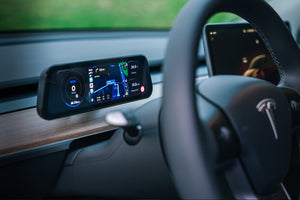
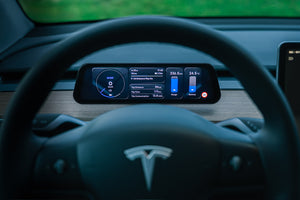
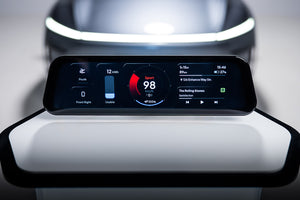
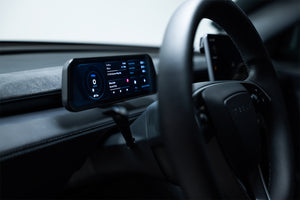
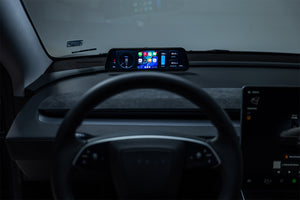
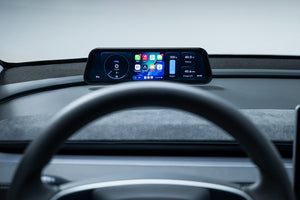
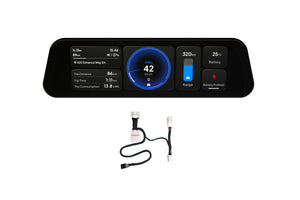
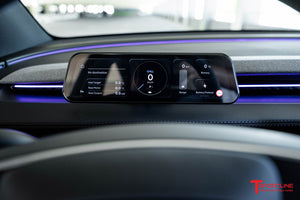
The S3XY Dash is a 9.6-inch LCD touchscreen that redefines driving intelligence. Seamlessly integrated behind steering column or on the windshield for a true Heads-Up Display experience, it delivers real-time vehicle data like battery temperature, regen levels, blind spot alerts, and more – all customizable to your exact preferences.
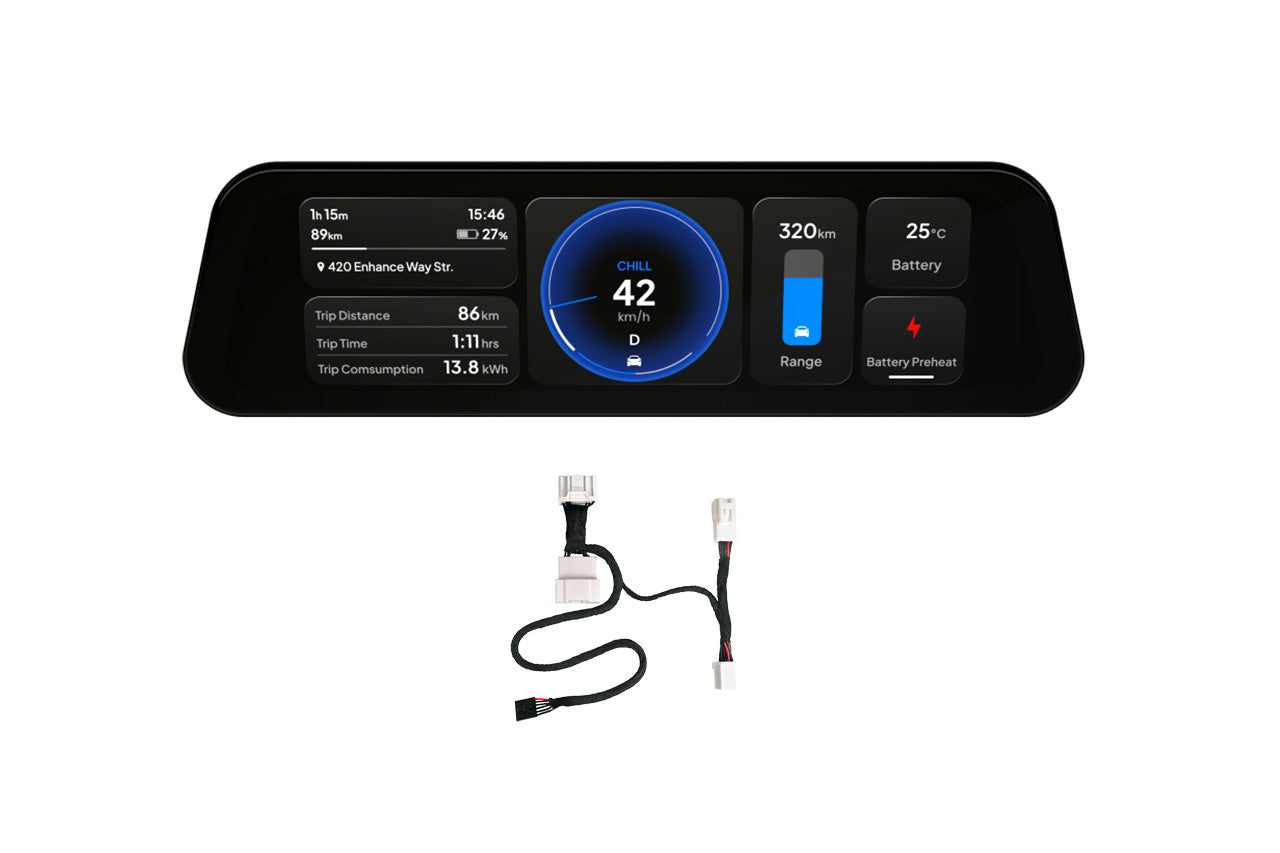
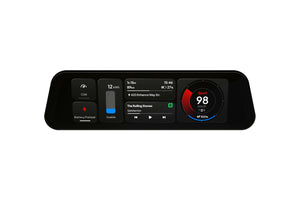
Fully customize your dashboard screen: resize, restyle, and reposition every widget in 1×1, 2×1, or 1×2 formats. Create multiple dynamic screens that auto-switch based on driving mode – from Autopilot stats to charging insights showing kWh charged, degradation, and preconditioning triggers via scroll wheel control.
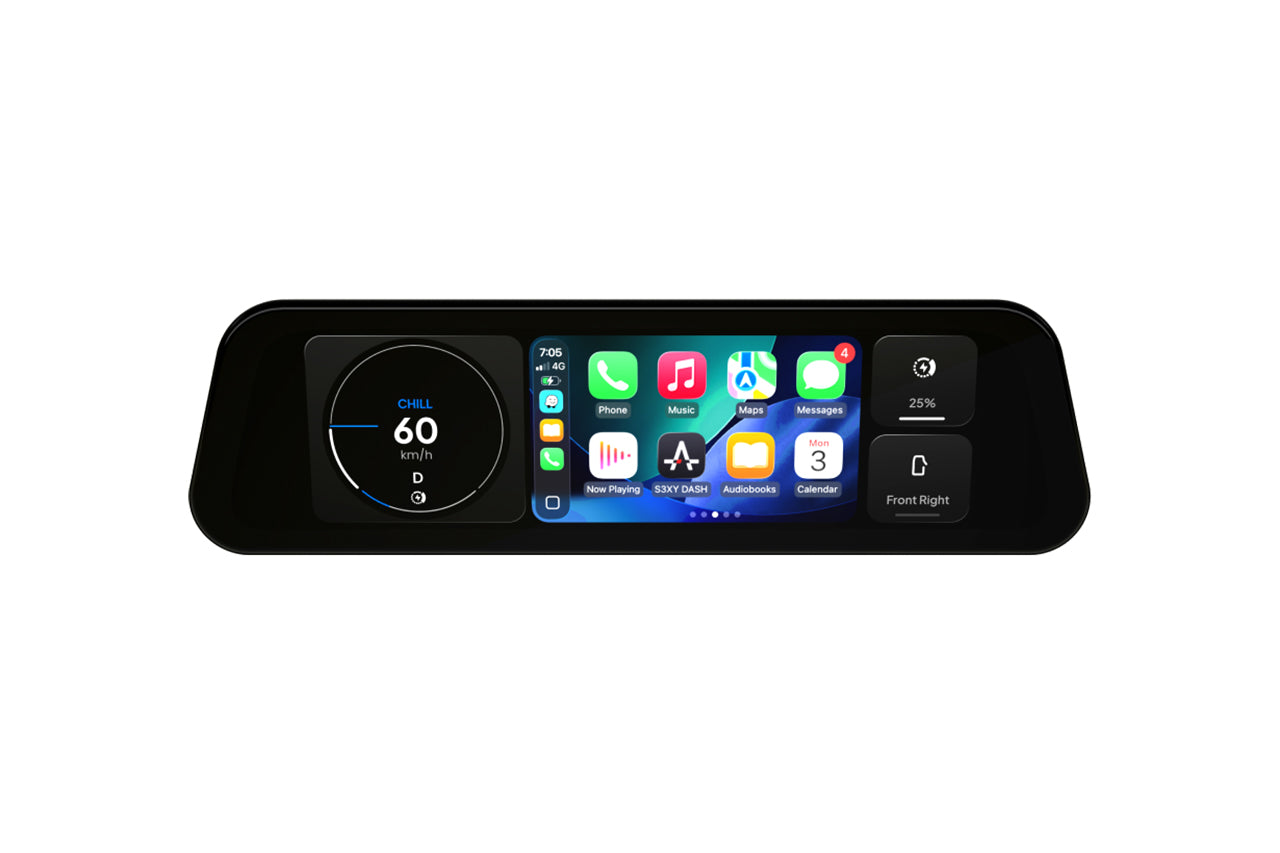
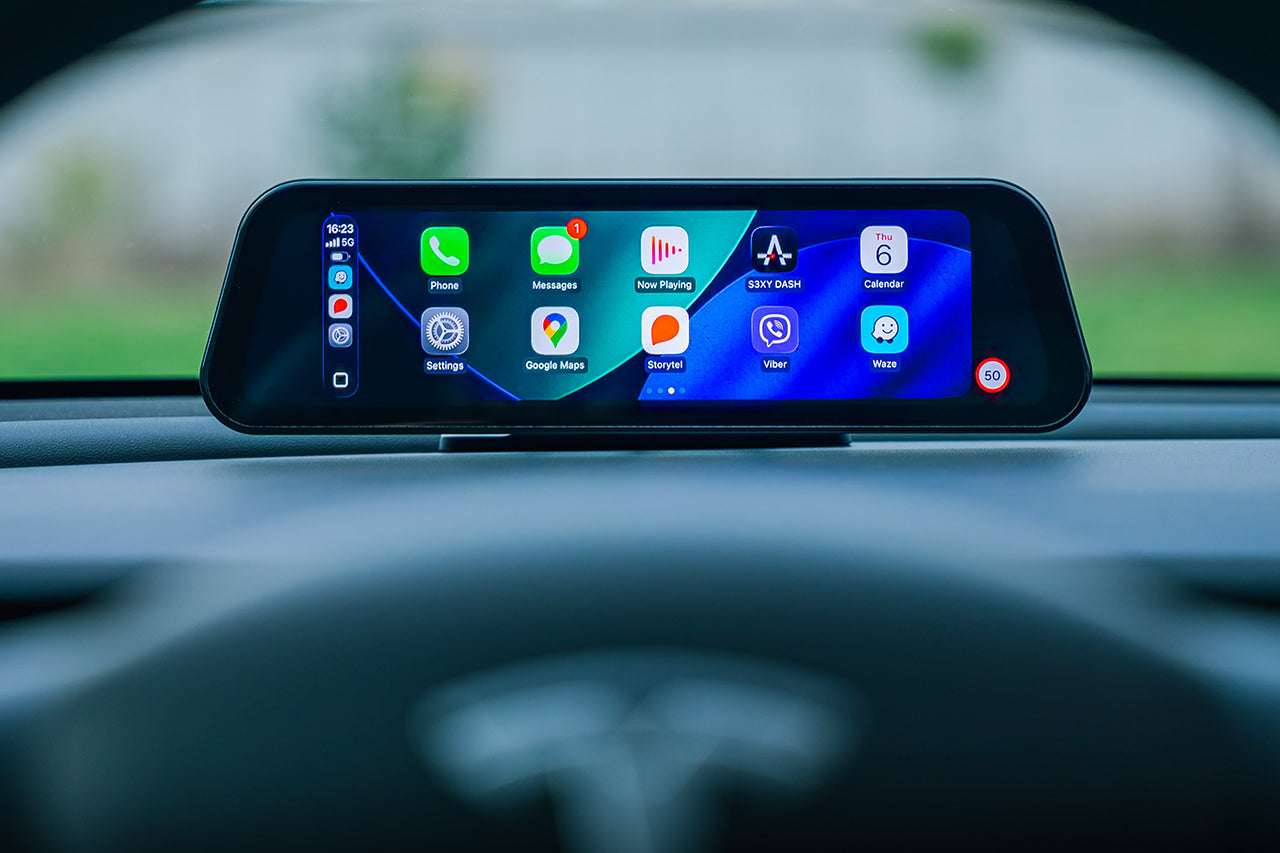
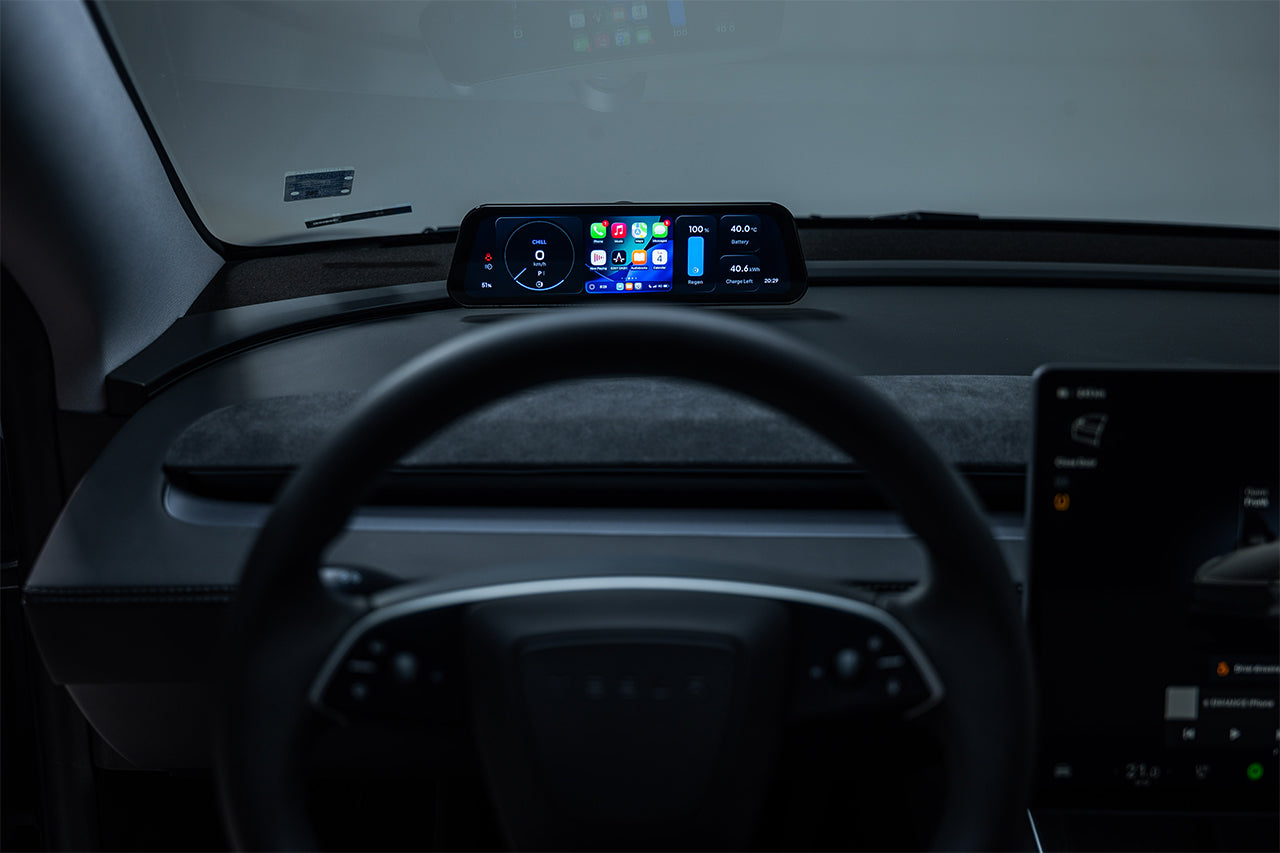
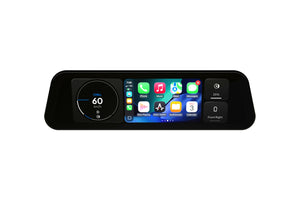
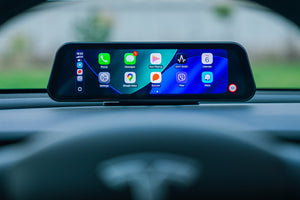
The world’s first resizable Apple CarPlay/Android Auto cluster screen lets you embed navigation in five styles – from compact 2×2 alerts to full-screen immersion – without sacrificing Tesla-native design. Pair effortlessly with the Gen2 Commander via Bluetooth for plug-and-play installation at the A-pillar OBD port.
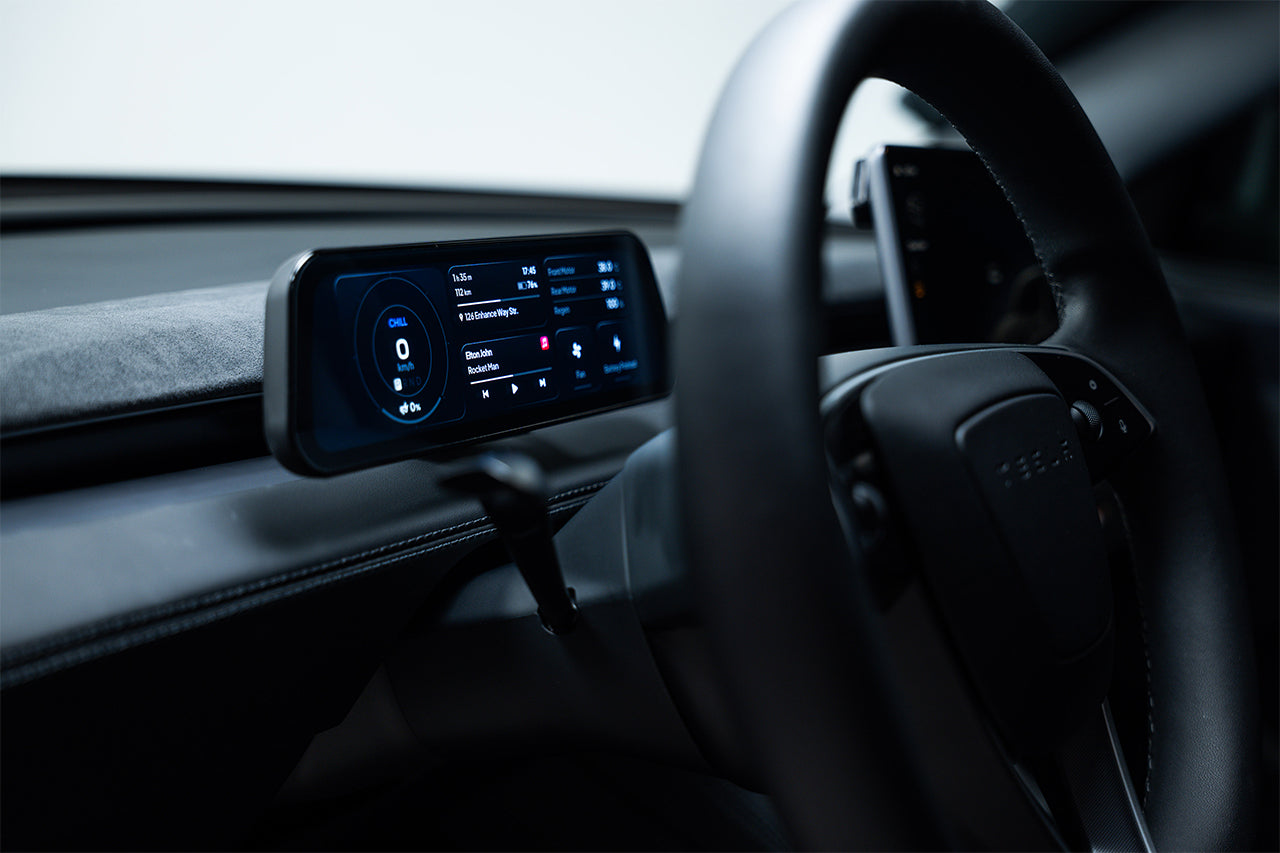
Prefer a classic layout? Use the MagSafe steering-wheel mount for ultimate flexibility. Every S3XY Dash evolves with OTA updates driven by community feedback, and integrates flawlessly with your existing S3XY Buttons and Knob ecosystem.
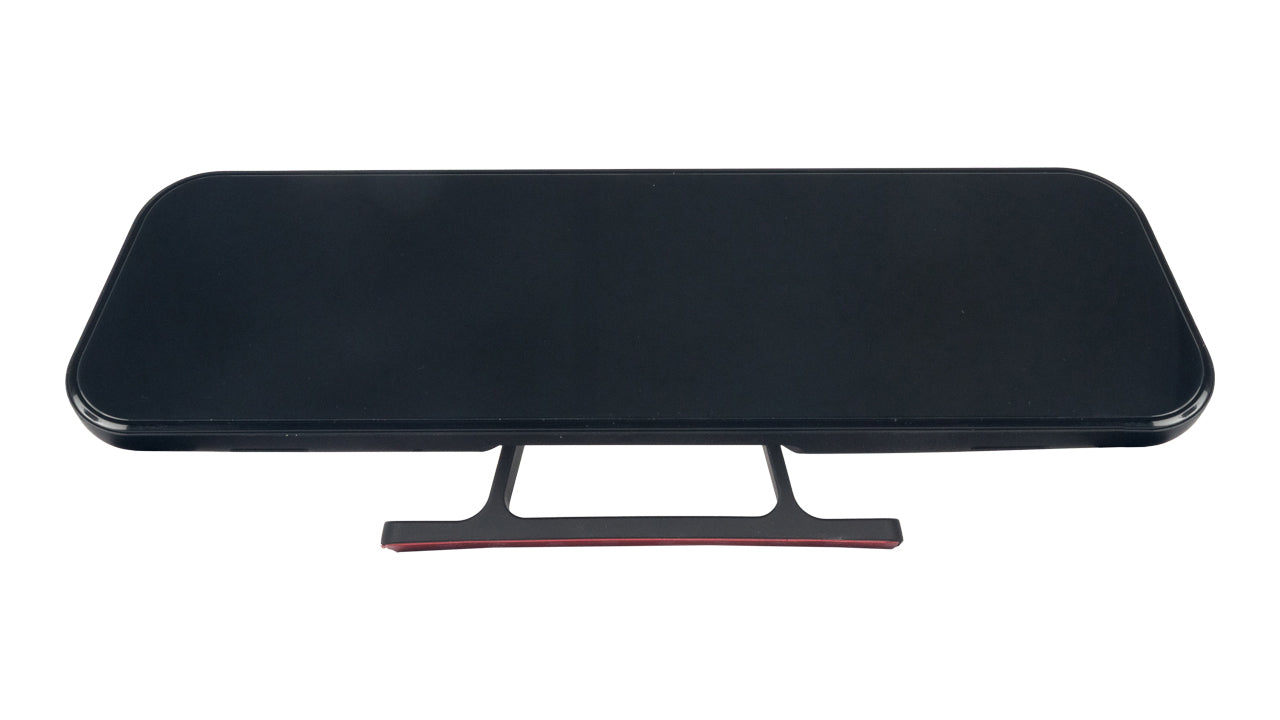
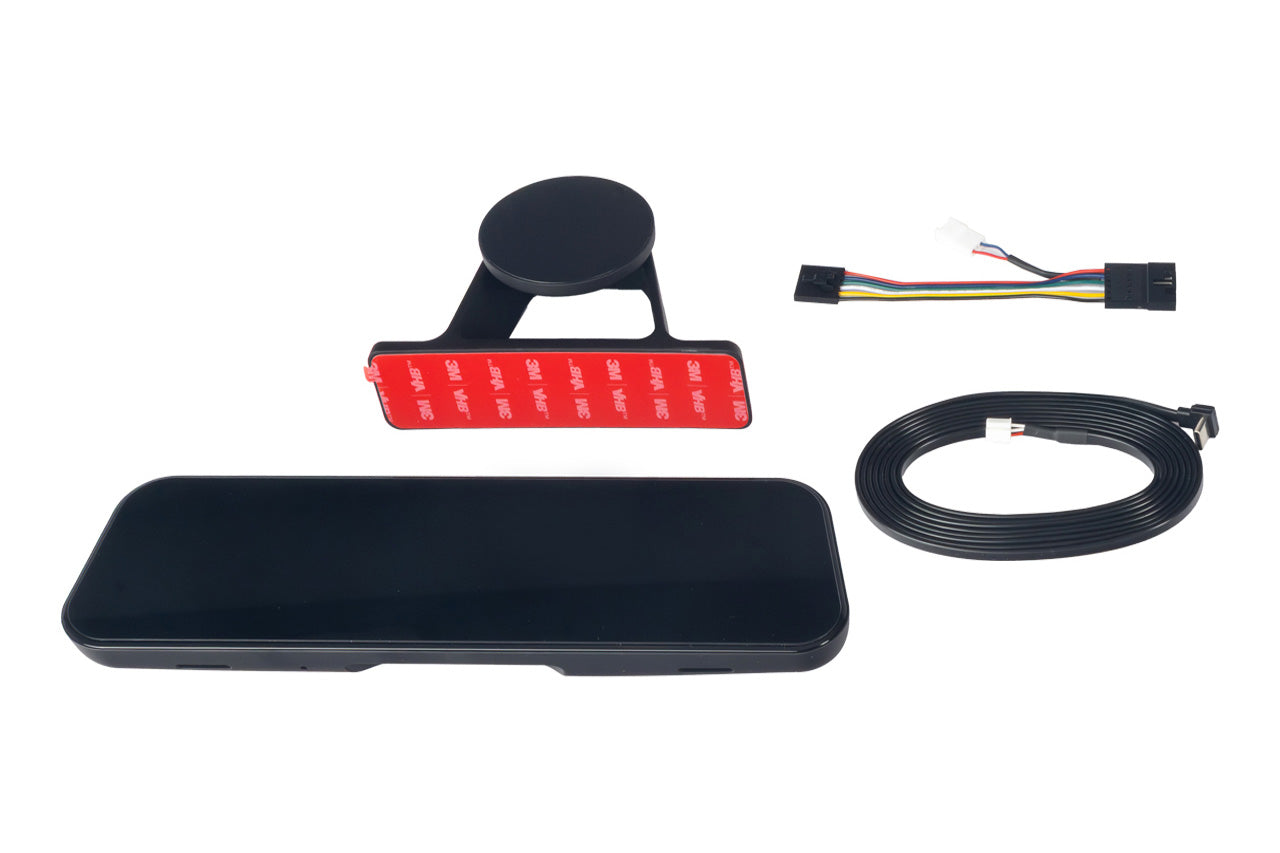
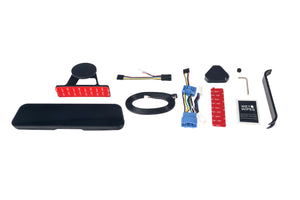
Existing owners who have a Gen2 Commander can purchase a [standalone unit + front cable bundle] . A MagSafe-style stand is included for flexible placement.
Don’t just drive your Tesla – master it with S3XY Dash.
Applications:
Technical Note(s):
If you purchase a Standalone Screen only, and you have one of the following vehicle(s):
Model 3 2021-2024 (pre Highland)
Model Y 2021-2024 (pre Juniper)
You must use a Gen2 Commander & a front cable installed at the front passenger kick panel or features such as key features like Blind Spot, Autopilot, and Speed Limit warnings will not work. Click below for the proper commander cable bundle you'll need!
Model 3 2021-2024 Commander + Front Cable Bundle
Model Y 2021-2024 Commander + Front Cable Bundle
View ALL Enhance Auto S3XY Products
View full COMPATIBILITY GUIDE here
FAQs
When should I buy a Standalone Screen only?
If you already have a S3XY Commander v2 installed in the FRONT location of your Tesla Model 3/Y, then you only need a Standalone Screen.
When should I buy a Standalone Screen and Front Cable Bundle?
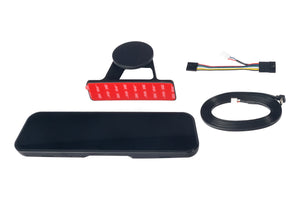
If you bought the Gen2 Commander or Buttons previously and selected the Rear Installation Cable pictured below,

you will need to purchase a Standalone Screen & Front Cable. The Gen2 Commander connected to the Front Cable, which is then connected to the a-pillar obd2 port is required for the vehicle data to transfer properly to the S3XY Dash screen.
When should I buy a Complete Bundle (Screen + Commander + Front Cable)?
If you do not have a S3XY Gen2 Commander, purchase the entire bundle for your respective model containing the S3XY Dash Screen + Commander + Front Cable.
Do I need extra accessories to connect the S3XY Dash [Standalone] to my existing Commander?
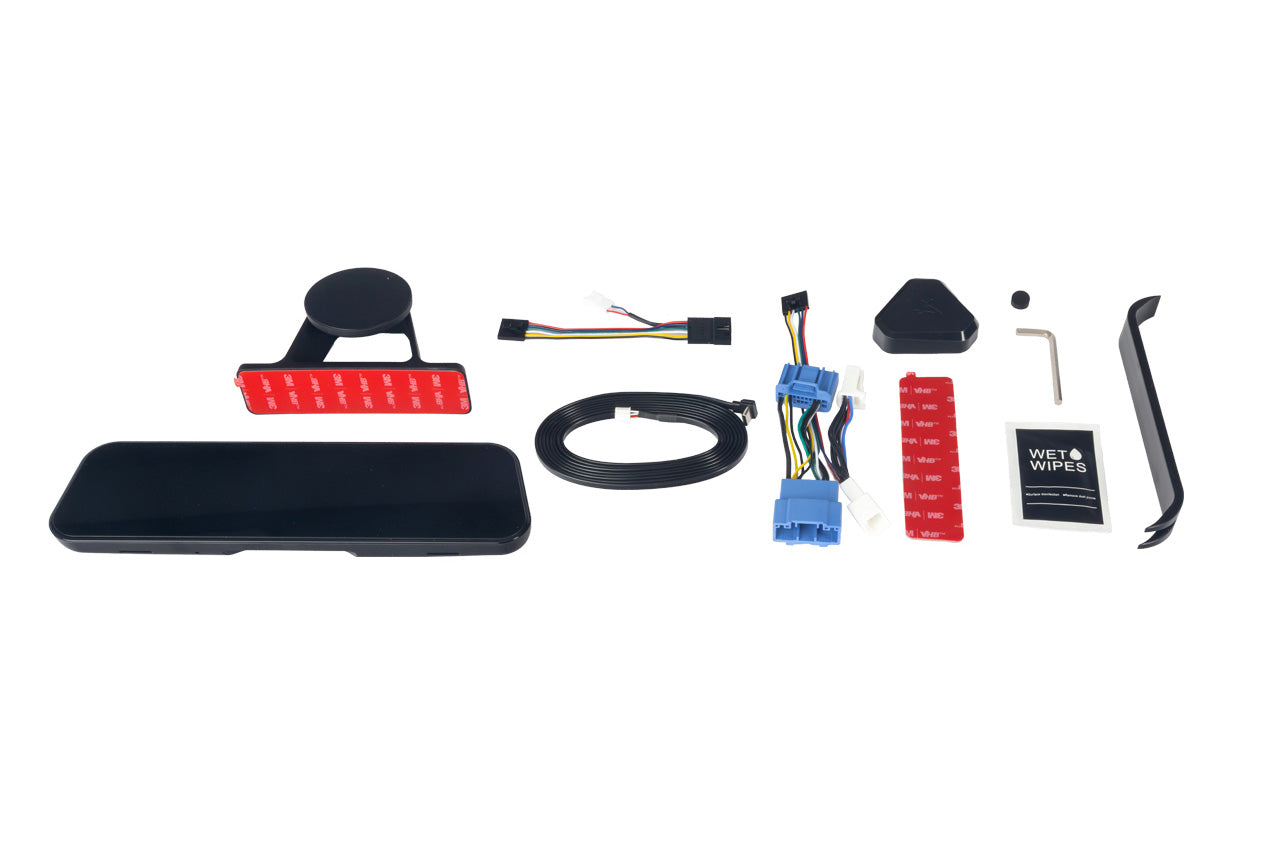
No. The package includes everything required: the connection cable and small power adapter. No additional purchases needed.
What are the current known issues as of Feb 26, 2026?
- Dash may pause/disconnect when the S3XY App is connected → avoid using both simultaneously.
- App update stuck at 5–10% → reboot Dash via USB cable or update directly from Dash Settings → Update.
- CarPlay connects even when Dash is off/vehicle locked → disable Dash in phone’s CarPlay settings.
- Some actions trigger wrong function or show incorrect state.
- Changing Dash settings from the App is not fully functional yet.
- On some phones (especially iPhone), background BLE connection prevents Dash data → force-close the app or restart phone.
Does the Dash work with Gen1 Commanders?
No. It requires a Gen2 Commander. Gen1 units are not compatible.
Does CarPlay on the Dash need internet?
Yes — it uses your phone’s mobile data (maps, music, etc.). The Dash itself has no internet.
Can the Dash show the full Tesla navigation map?
No. It displays only navigation data (destination, ETA, battery at arrival), not the live map.
Does Commander installation port matter for the Dash?
Yes. Commander must be in the front port (right A-pillar OBD).
If currently in the rear port, relocate it to the front or select the correct cable option when ordering.
Will the Dash drain the car battery?
No. Power consumption is very low and negligible.
Can I use my phone’s hotspot for CarPlay on the Dash (no Premium Connectivity)?
No. CarPlay uses Wi-Fi, so hotspot sharing conflicts. Tesla’s built-in apps (nav, Spotify, etc.) still work normally if the car has internet.
Can I power the Dash with a regular USB-C cable for testing?
Yes, but many standard cables are too thick for the recessed port. Use a slim connector or modify the cable housing if needed.
Is the included S3XY USB-C cable safe to charge phones/tablets?
No. It supplies 16V from the Commander — using it for other devices can cause permanent damage.
Will the Dash boot from any USB-C power bank/charger?
Usually yes, but some chargers (e.g., certain Apple models with AVS) may fail. Try a different adapter.
Why does the Dash turn off after 5–10 seconds?
Normal when no vehicle data is received (e.g., Commander not connected/working or App is connected). Ensure Commander is active and App is disconnected.
Can I power the Dash from a standalone USB-C source without Commander?
Yes for bench testing, but it will shut off after a few seconds without vehicle data from a Commander.
What mounting system does the Dash use?
3M VHB adhesive base + MagSafe-style magnetic head. Angle is adjustable only during install (straight for windshield, tilted up for behind steering wheel). Includes L-hex key to lock.
Is the mount standard MagSafe? Can I use third-party mounts?
It follows MagSafe magnetic standard (no wireless charging). Third-party mounts work only if outer diameter ≤ 60 mm due to the Dash’s mechanical indentation for stability.
What if the mount doesn’t stick well?
Clean surface thoroughly, apply at room temperature, wait 24 hours before attaching Dash. Spare 3M pad included; replace with high-quality 3M VHB if needed.
Can I reposition the mount later?
Yes, but adhesive is best for 1–2 moves. Use the spare pad if adhesion weakens.
Does the Dash include a screen protector?
Yes — factory-applied privacy/anti-glare filter (reduces night windshield reflections). Privacy is vertical only; passengers can still see clearly. Remove for brighter/more responsive screen when mounted behind steering wheel.
Dash looks too dark — what can I do?
If behind steering wheel, remove the privacy filter for much better brightness/touch. A Light theme + Auto theme switching is coming soon.
How to reduce daytime glare from steering wheel/hands?
Light (white) theme planned soon; Auto theme switching also coming.
Does the Dash block steering wheel vents?
It blocks some airflow, but most air still reaches the driver. Mount under windshield if maximum airflow matters.
Does using steering wheel scroll wheel for Dash actions affect Follow Distance?
Yes, currently it does. Fix planned in future update.
How many Bluetooth connections can the Commander handle?
v6.3.1+ supports multiple (Dash, App, Buttons, etc.), but App + Dash connected simultaneously currently blocks vehicle data to both (config/updates still work).
Dash disconnects frequently — what to do?
Update to latest: Dash SW v6.3.1+, FW v20+, Commander v20+. Temporary fix: unplug/replug Dash power cable.
How do I check Dash software versions?
Settings → System. Shows SW, BT1, BT2, FW. Re-enter menu if FW missing. Contact support with photo if needed.
Commander firmware required?
v6.3.1 or higher.
How to update very old Dash firmware (v02–v07)?
Requires one-time TelinkBleOTA patch before standard in-app updates work.
How to increase CarPlay volume on Dash?
Dash Settings → Volume (bottom of page).
Does Dash configuration require the mobile app?
Currently limited. Full layout/widget customization coming in future app version.
Can I keep phone calls on Tesla speakers/mic while using CarPlay visuals on Dash?
Yes — set audio output to “Phone” in Dash settings.
How to connect CarPlay / Android Auto?
Pair phone to “S3XY_Dash_XXXX” via Bluetooth, accept CarPlay prompt. Restart devices and update software if prompt missing.
Why two Bluetooth menus in Dash settings?
“S3XY Devices” → connect Commander/Enhance gadgets via BLE.
“Bluetooth” → manage phones for CarPlay/Android Auto.
Dash stays on after leaving the car?
Fixed in v6.3.1 and newer.
Can steering wheel scroll wheel switch Dash pages?
Yes (right wheel). Disable in settings if it conflicts with Autopilot or automations.
Scroll wheel safe with gear-change automation?
Yes — enable “Require brake for R-D” in Scroll Wheel settings to prevent accidental shifts.
White line in bottom-left during updates?
Harmless display glitch due to screen shape — no impact on normal use.
Navigation shows “No Destination”?
Dash syncs every few seconds. Ensure active navigation in car and Commander connected.
Is there noticeable lag in CarPlay/Android Auto?
Usually <1 second. Restart devices and update software if worse.
Does Regen toggle work properly?
Currently acts as “set” not true toggle. Fix coming.
Will Dash support TPMS (tire pressure)?
Yes — on the roadmap.
Is there a full blackout / Stealth Mode?
“Screen clean” / blackout mode for night driving under consideration.
Can Dash show blind spot camera feed?
No — Tesla video feed limitation. Blind spot warning indicator planned instead.